Prepare a short sample
Select an area of the base that has already been visited: door, shore, forest, return. Turn off shader and heavy resource pack. Complete the route, then repeat after loading. Record FPS and noticeable camera stops. The first entry into new chunks is not suitable for comparing ready-made settings.
In Java, before new debug screen reworks, FPS is visible via F3; in other versions, enable the appropriate debug indicator. Close unnecessary browser tabs and connect the laptop to power. Compare changes with the same window size.
Change in this order
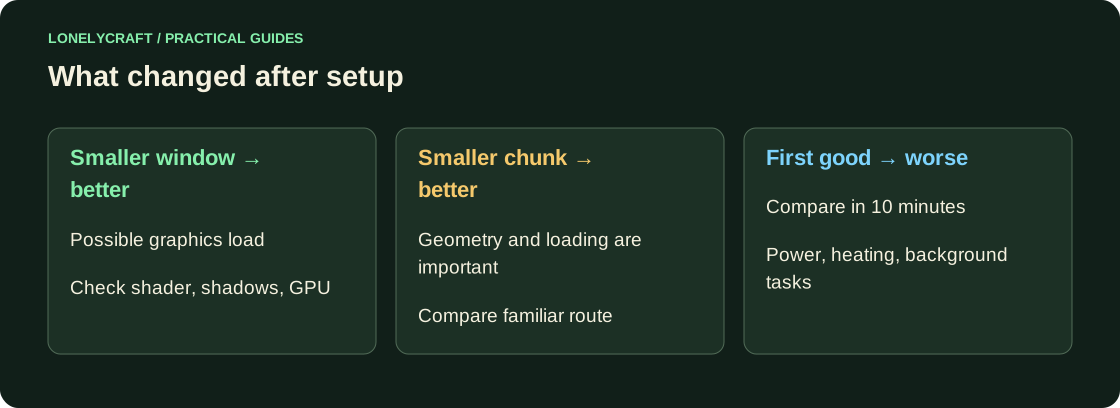
- Reduce the window resolution, for example from 1920×1080 to 1280×720. If it becomes noticeably easier, the graphic load is significant. GUI Scale changes the size of the interface, not the render resolution.
- Set Render Distance 8 chunk as a test point; after measuring, compare with 6 and 10. Don't expect the same results in the forest as in the desert.
- In a single world, try Simulation Distance 5–6. On the server, its simulation is controlled by the administrator.
- Reduce the range of entities, particles and clouds; check one parameter at a time. On a base with animals, the effect is different from an empty world.
- After stable operation, set the frame limit to the screen and comfort. Unlimited FPS in the menu can only heat up the laptop more.
Check your graphics adapter and long-term gaming
In Debug Information or System Manager, find the GPU the client is running on. On a laptop with two adapters, select the high-performance option for the actual Java game process, not just the launcher window. After updating the launcher, the process path may change.
Repeat the route in ten minutes. If the smoothness disappears without changing the scene, check the temperature, power and background processes. Select the driver by model on the manufacturer’s website; Known issues are listed in Sodium documentation.
When does Sodium make sense?
Create a separate profile and install Sodium for the exact version of Minecraft. Compare the same scene without other new mods. This step may improve rendering, but does not fix slow server ticks and network losses. Don't allocate all the RAM to Java: leave some extra for the system and driver.
Figure out which of the two radii changes your load. Rendering and simulation.
If the camera is smooth and the blocks are returning, check another section of the chain. FPS, TPS and ping.